
Origin
Origin is a Git repository hosting service. Buildkite Pipelines integrates with Origin to create builds from branch pushes, tag pushes, and pull request events. The integration can also check out private repositories on Buildkite hosted agents and publish build results to Origin.
Cursor customers using Origin receive a 30-day trial of the Buildkite evaluation plan when they sign up through Origin. See Buildkite pricing for plan details.
When the trial ends, you can request an extension, switch to the Free plan, upgrade to the Pro plan, or discuss the Enterprise plan with Buildkite. If you take no action, your Buildkite organization becomes inactive.
Connect Origin
You can install Buildkite from an Origin codebase's Apps settings or from an existing Buildkite account. The Origin app can access all repositories in an Origin installation or only repositories selected during installation.
The Buildkite app supports Origin-hosted repositories. It does not support repositories mirrored from GitHub, which continue to use GitHub for CI.
The Buildkite plugin in the Cursor Marketplace adds the Buildkite MCP server and skills to Cursor. It does not connect an Origin repository to Buildkite Pipelines.
Connect from Origin codebase settings
You must be an Origin administrator to install Buildkite from a codebase's settings. Your team must also have enabled Origin and claimed a codebase name.
Open Origin codebase Apps settings.
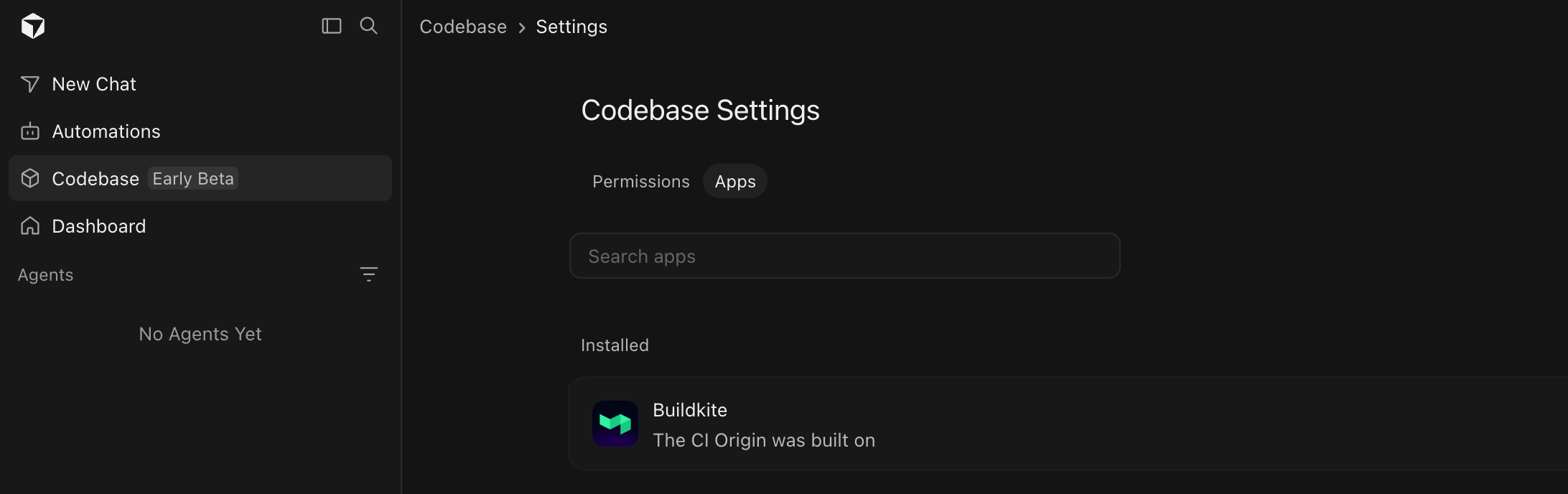
In Codebase, open Settings > Apps to find Buildkite.
If Buildkite appears under Installed, the app is already installed for the codebase. You can create a pipeline for an accessible repository.
Otherwise, install Buildkite:
- Select Buildkite.
- Choose whether to grant access to all repositories or selected repositories.
- Install the app. Origin redirects you to Buildkite.
- Sign in to an existing Buildkite account or sign up for a new account.
- Select or create a Buildkite organization. Buildkite names the verified Origin account before you confirm the connection. Check that it matches the installation you started from.
- On the New Pipeline page, select a repository and create the pipeline.
To confirm that Buildkite is active for a specific Origin-hosted repository, open the repository, then select Settings > Apps.
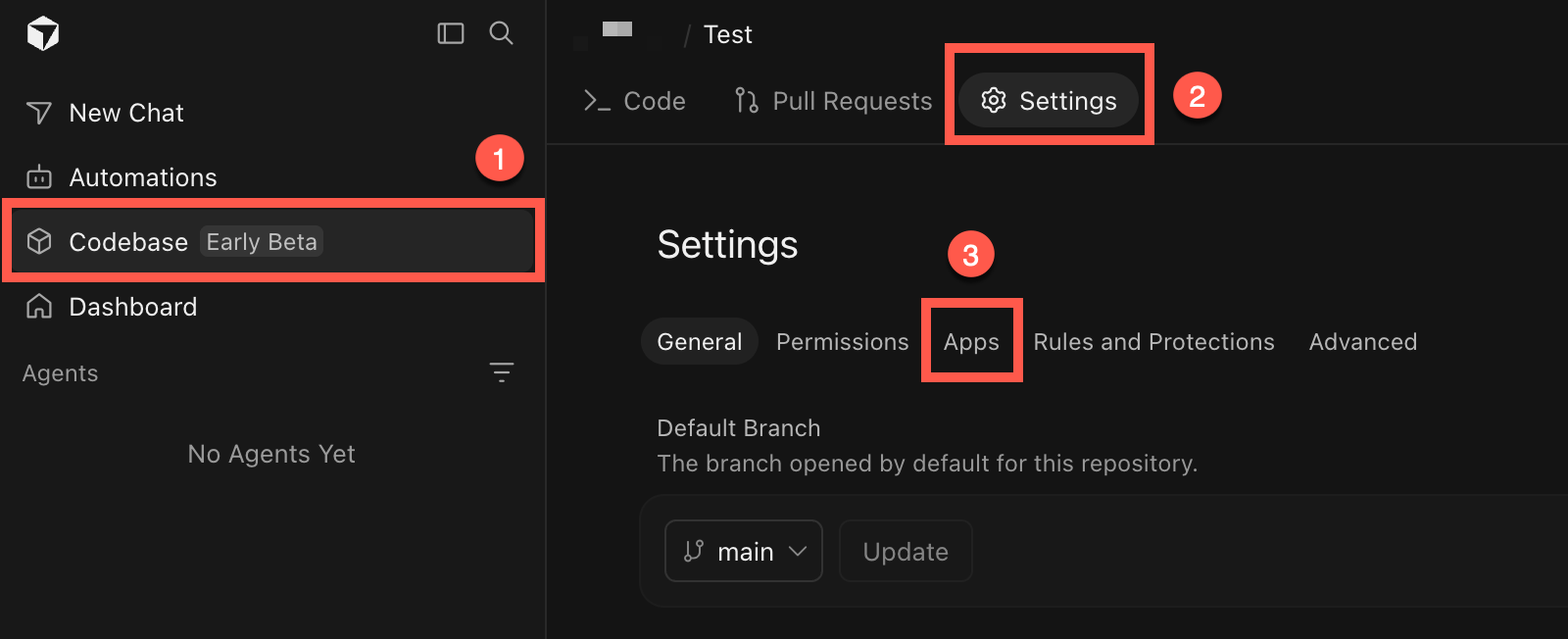
Confirm that Buildkite appears under Installed.
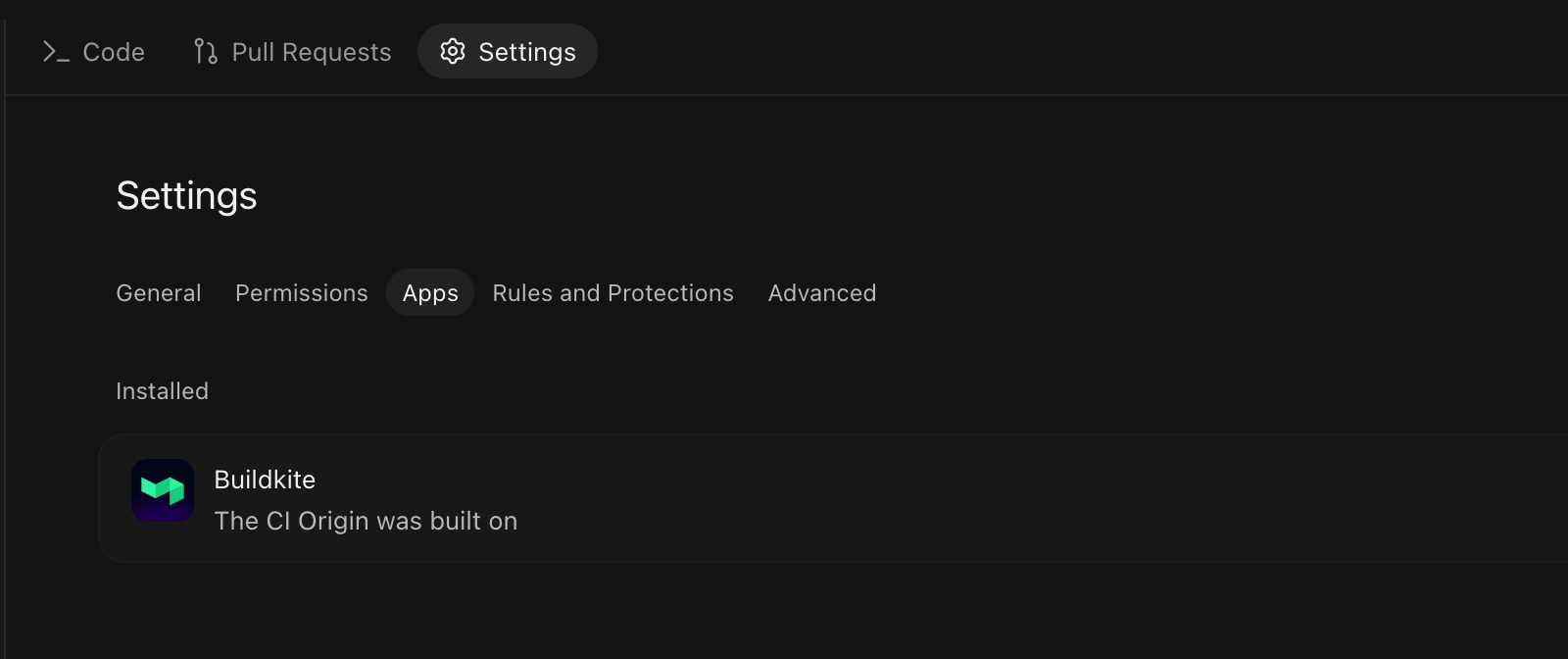
The repository Apps settings list Buildkite after installation.
Connect from Buildkite
You must be a Buildkite organization administrator to connect Origin to an existing Buildkite organization.
Start the connection from either of these locations:
- On the New Pipeline page, select Connect Origin account.
- Select Settings > Repository Providers. In Add Provider, select Origin. Buildkite redirects you to Origin.
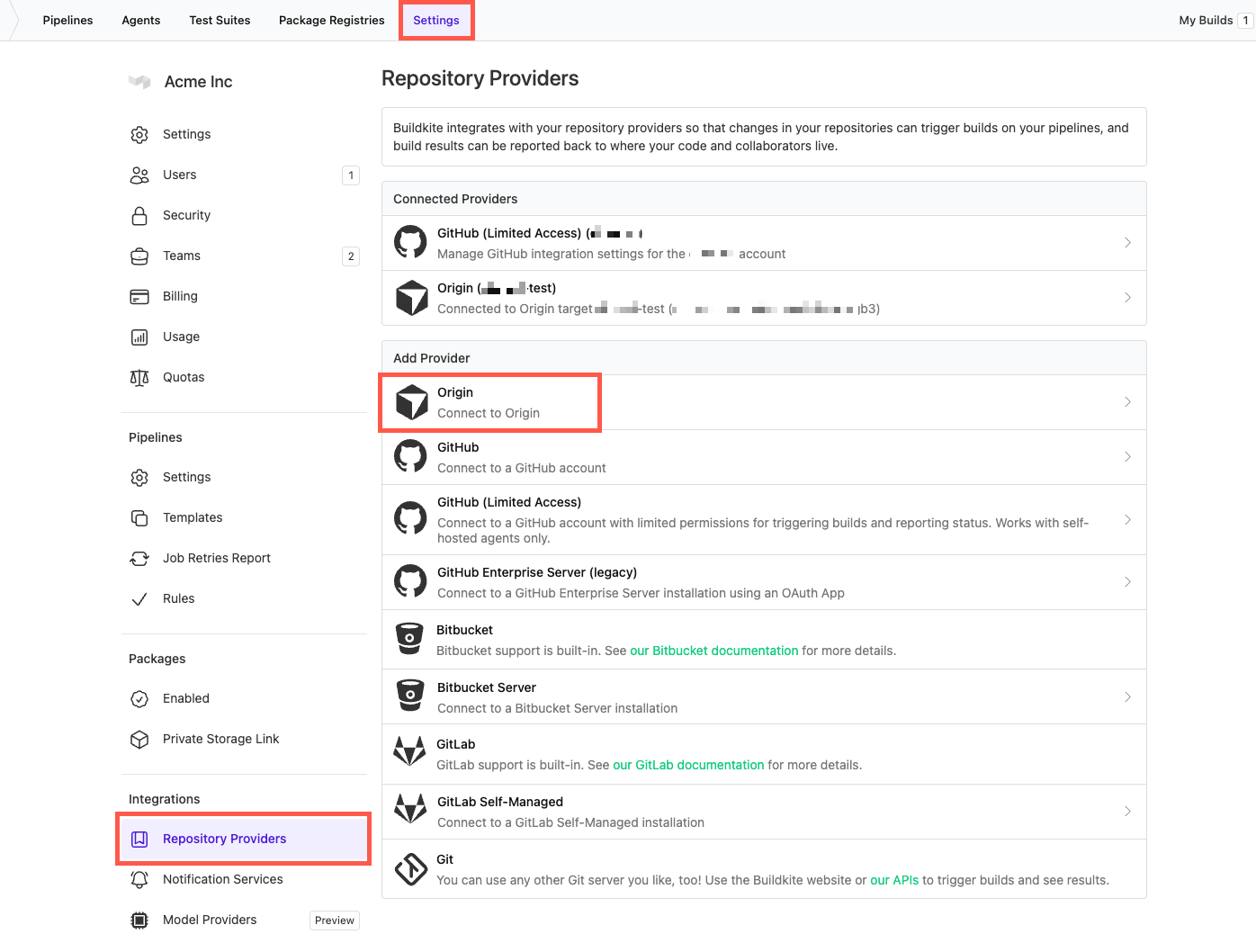
Complete the connection in Origin:
- In Origin, select the target and choose whether to grant access to all repositories or selected repositories.
- Install the app. Origin returns you to Buildkite.
- If you started from Repository Providers, create a pipeline for an accessible repository.
The app requests read access to repository contents and pull requests. It also requests read and write access to checks so Buildkite Pipelines can publish build results.
Manage repository access
The Origin provider settings show whether the installation can access all repositories or selected repositories. To change this access, select manage your installation settings in Origin.
Disconnect Origin
To disconnect Origin from your Buildkite organization:
- Select Settings > Repository Providers > Origin.
- In Disconnect, select Disconnect.
Disconnecting the provider from Buildkite does not uninstall the app in Origin.
Create a pipeline
After connecting Origin, create a pipeline from a repository that the app can access:
- Select Pipelines > New Pipeline.
- From Git scope, select the Origin installation. It appears as Origin (target-name).
- From Repository, search for and select the repository.
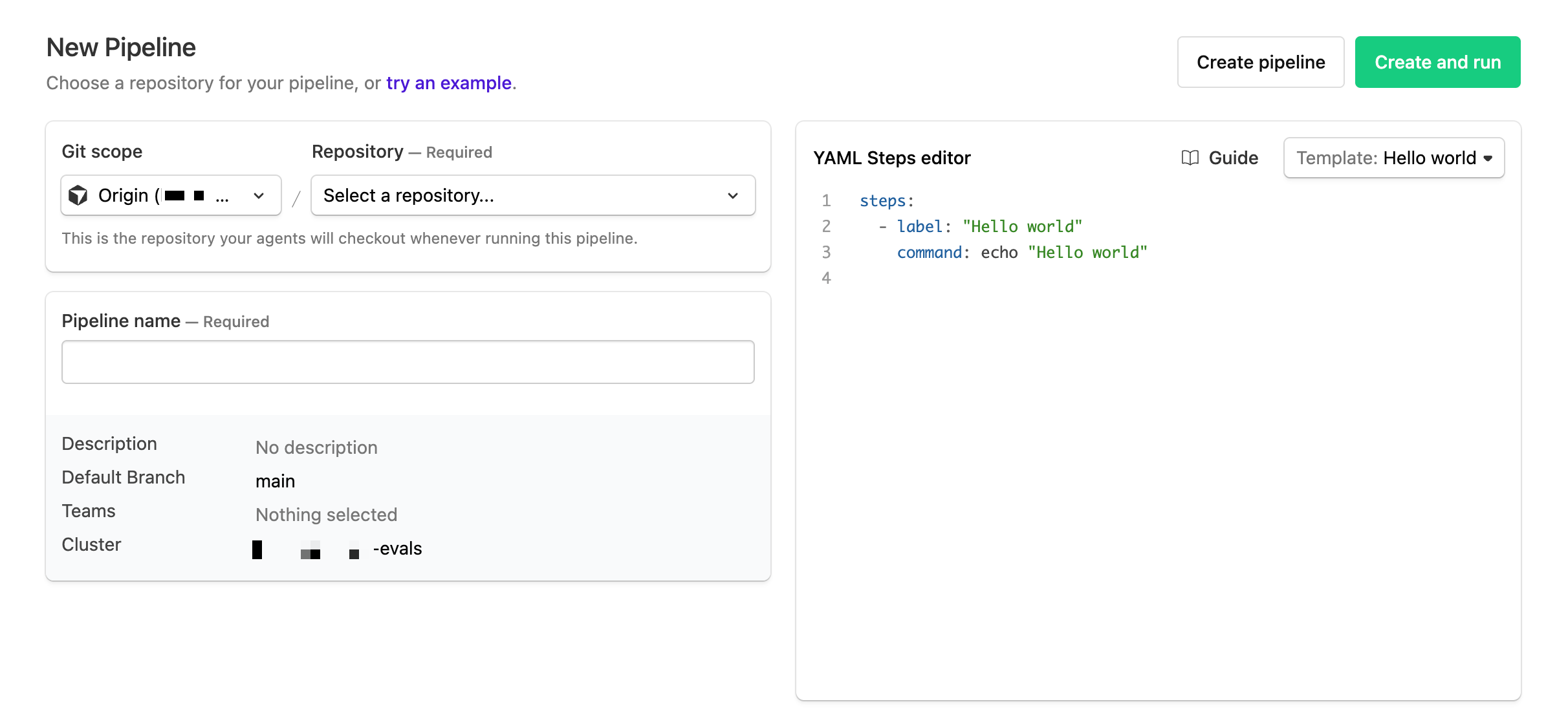
- Complete the remaining pipeline settings, then select Create pipeline.
Buildkite Pipelines validates access to the selected repository and saves its canonical HTTPS checkout URL. If the repository contains .buildkite/pipeline.yml, the YAML Steps editor automatically selects Pipeline upload.
Select the repository from the connected Origin installation instead of entering its URL manually. The association lets Buildkite Pipelines provide hosted-agent checkout credentials, receive repository events, and publish check runs.
Change a pipeline repository
To associate an existing pipeline with an Origin repository:
- Select Pipelines > your pipeline > Settings > Repository.
- Select Change repository.
- Select the Origin installation and repository.
- Select Save Repository.
If the associated Origin installation is disconnected, the repository settings show The Origin installation for this pipeline is disconnected. Organization administrators can select Reconnect Origin to restore the connection. Buildkite Pipelines preserves the existing repository URL and provider settings while the installation is disconnected.
Check out private repositories on hosted agents
Jobs running on Buildkite hosted agents can check out a connected private Origin repository without an SSH key or extra pipeline configuration. Before checkout, Buildkite Pipelines creates a short-lived repository:contents:read token scoped to the exact repository configured on the pipeline.
Native Origin authentication applies only to Buildkite hosted agents.
Use Origin as a clone mirror for GitHub
You can keep GitHub as the source of truth, build trigger, and build-status destination for a pipeline while using Origin as a remote clone mirror. After Buildkite Pipelines resolves the exact commit from GitHub, supported jobs fetch the commit from Origin. If the commit is not available from the mirror, the agent falls back to GitHub.
Remote mirror checkout requires Git 2.45.0 or later. Branch-build support is available in Buildkite agent v3.136.0 and from v3.136.2 onward. Buildkite agent v3.136.1 ignores remote mirrors. Pull request builds that check out the head commit require Buildkite agent v3.137.0 or later. Jobs that do not meet these version requirements fetch from GitHub instead.
Tag builds and pull request builds that use the GitHub test merge commit bypass the mirror and fetch from GitHub.
An Origin mirror can reduce repeated GitHub fetches for pipelines that create many jobs from a single push. The effect on build time depends on the pipeline's workload.
Clone mirrors must be enabled for your Buildkite organization. To configure an existing GitHub pipeline, set its clone_mirror_url to the Origin repository URL. Buildkite agents receive the configured URL in BUILDKITE_GIT_REMOTE_MIRROR_URL.
Configure build triggers
Select Pipelines > your pipeline > Settings > Origin to configure which Origin events create builds.
Buildkite Pipelines receives signed events through the installed Origin app. You do not need to configure a webhook for each pipeline.
Branch and tag pushes
- Build branches: Creates builds when commits are pushed to branches. This setting is enabled by default.
-
Build tags: Creates builds when tags are pushed. This setting is disabled by default. For tag builds,
BUILDKITE_TAGandBUILDKITE_BRANCHcontain the tag name.
Deleted branches and tags do not create builds.
A single push event creates builds for up to 1,000 distinct branch and tag names. If a push affects more names than that, Buildkite Pipelines builds the first 1,000 names in payload order and skips the rest. The push does not fail or retry because of the limit.
Pull requests
Build when pull request is opened or updated creates a build when a pull request is opened or its head branch is pushed. This setting is enabled by default.
Pull request builds ignore pipeline-level branch filters. When pull request builds are disabled, a push to the same branch can still create a branch build if Build branches is enabled.
Conditional filtering
Use a conditional expression to filter incoming Origin events before the other build trigger settings apply.
Publish checks to Origin
Despite the setting name, the integration uses the Origin Checks API rather than commit statuses. The check contains relevant build information and updates as the build progresses.
When Update commit statuses is enabled, Buildkite Pipelines publishes a check to Origin for each build. This setting is enabled by default.
The check shows information relevant to the build state:
- Scheduled and running builds link to the build in Buildkite.
- Passed builds show the job count and run time.
- Failing and failed builds show failed jobs, exit results, job count, and run time.
- Canceled builds show the cancellation reason, when known.
- Blocked builds link to Buildkite so you can unblock them.
Checks show up to 50 failed jobs, listing hard failures before soft failures. Checks with more than 50 failed jobs link to the full list in Buildkite.
Configure required checks
Origin identifies required checks by the installed app and the keys of the check suite and check run. Display names are not used for matching.
| Key | Value |
|---|---|
| Check suite key | <buildkite-organization-slug> / <pipeline-slug> |
| Check run key | <pipeline-slug> |
When configuring a required Buildkite check in Origin, select the Buildkite app and use both keys. Retries keep the same keys and appear as separate attempts.
The keys use the current organization and pipeline slugs. If either slug changes, update the required check configuration in Origin to use the new keys.
Use Buildkite tools in Origin
You can give Origin agents access to Buildkite tools by adding Buildkite's remote MCP server or installing the Buildkite plugin. These integrations are separate from connecting Origin as a repository provider.
Add a team MCP server
In the Origin Dashboard, open Integrations & MCP, then add Buildkite as a Team MCP Server with the following endpoint:
https://mcp.buildkite.com/mcp
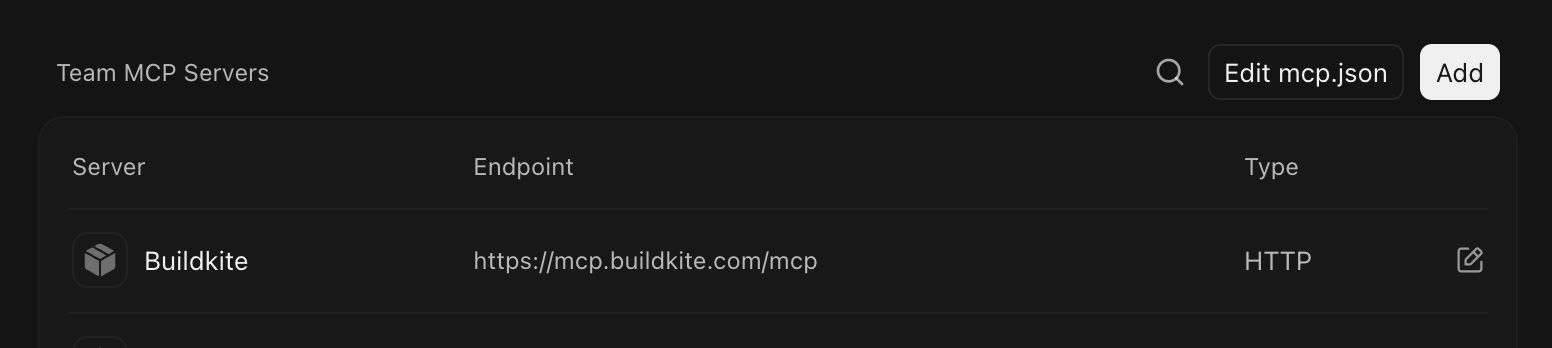
Buildkite appears under Team MCP Servers after configuration.
The remote MCP server uses your Buildkite account to provide tools for working with pipelines, builds, jobs, and tests. For details about its authentication and available tools, see the Buildkite MCP server overview.
Install the Buildkite plugin
In the Origin Dashboard, open Plugins, then select Buildkite. The Buildkite plugin combines the Buildkite MCP server with skills for designing pipelines, troubleshooting builds, and working with the Buildkite agent runtime, CLI, and API.
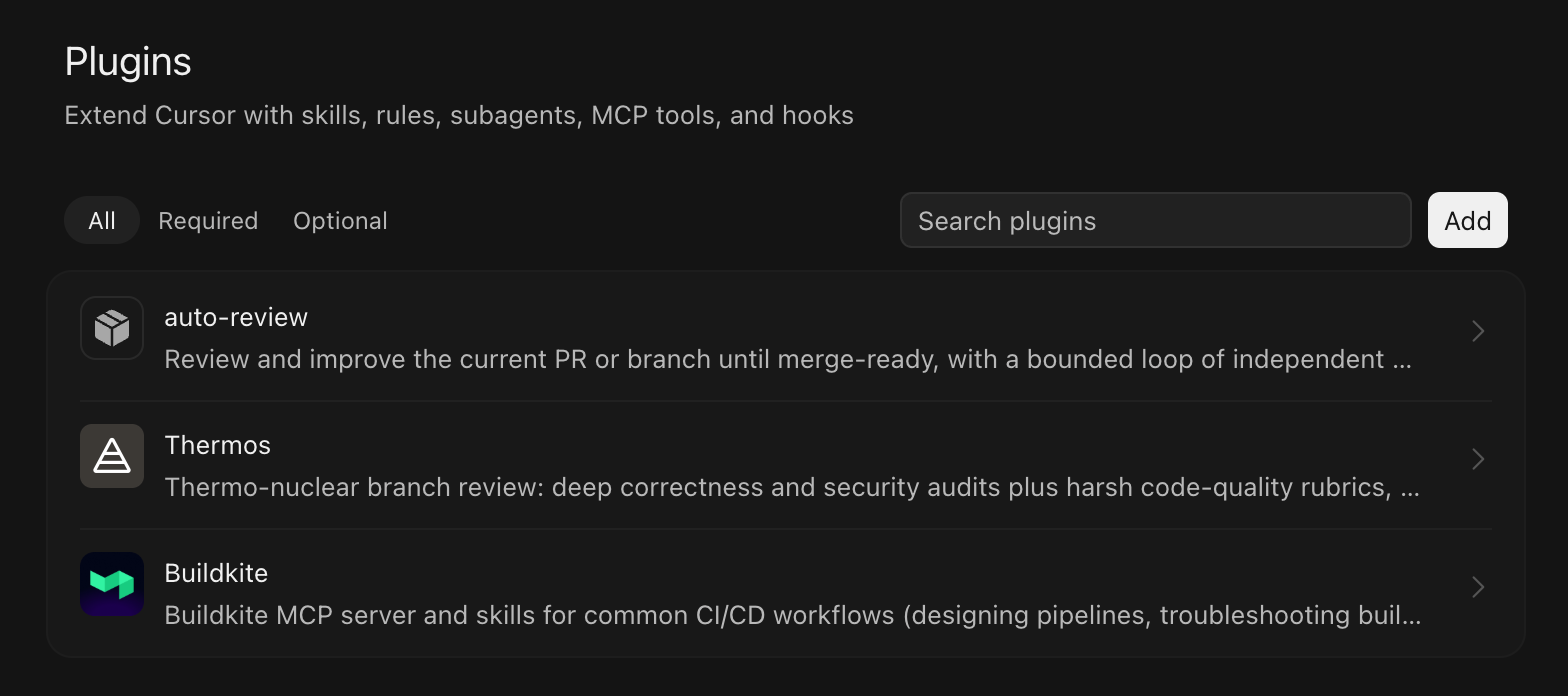
The Plugins page lists the Buildkite plugin with other available plugins.
Troubleshooting
Use the following guidance to troubleshoot Origin connection, checkout, build trigger, and check publishing issues.
Buildkite is missing from Origin Apps
Confirm that your team has enabled Origin and claimed a codebase name. You must also be signed in as an Origin administrator and use an Origin-hosted repository. The Buildkite app does not support repositories mirrored from GitHub.
Open Origin codebase Apps settings directly. You can also open an Origin-hosted repository, select Settings > Apps, then select Manage Apps.
Origin is not available in repository providers
Confirm that you are a Buildkite organization administrator. You can also install Buildkite from Origin codebase Apps settings and select an existing Buildkite organization during setup.
A repository is missing
Open the provider under Settings > Repository Providers > Origin, then select manage your installation settings in Origin. Confirm that the app can access the repository.
Hosted-agent checkout fails
Confirm that the pipeline repository was selected from a connected Origin installation and that the installation still has access to the repository. Native Origin checkout credentials are available only on Buildkite hosted agents.
Builds are not created
Check Build branches, Build tags, Build when pull request is opened or updated, and any conditional filter under the pipeline's Origin settings. Origin uses the app installation to send events, so there is no pipeline webhook to configure.
Checks do not appear
Confirm that Update commit statuses is enabled and that the pipeline remains associated with a repository from the connected Origin installation. If a required check stopped matching after an organization or pipeline rename, update its suite and run keys in Origin.
For Origin availability, see the Cursor status page.
For Origin API guidance, see the Origin API reference.
To inspect the connection using the Buildkite API, see: